Changing the Checkout Layout
How to modify the layout of checkout pages with Google Optimize
You can choose your checkout layout template that was prebuilt, or you can build one using the Subbly's Agentic Builder.
Choose a templated checkout layout
In order to change between templated layouts for the checkout, you'd need to:
- Open Cart Settings in your Subbly admin.
- Open the Appearance tab in the Checkout Designer.
- Choose one of the available layouts:
- Traditional one page checkout layout displays checkout on one page and uses one major validation.
- Multi Step checkout layout divides checkout into multiple steps and validates information as the customer progresses.
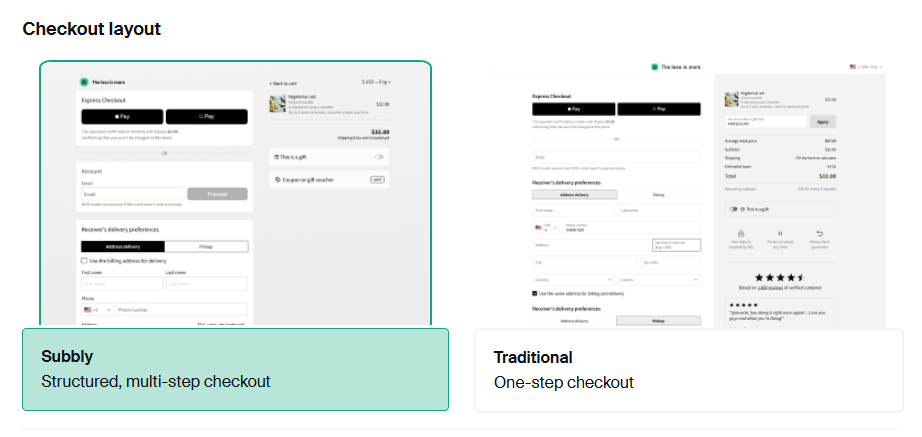
Only one layout can be selected at a time.
The layouts differ mainly in how checkout is presented, but the Multi Step checkout layout also provides more conversion-tracking event detail as customers progress. For example, it can record events related to adding a card or shipping address. These events are not being sent if you're using the one-page checkout because the checkout layout itself doesn't cover different forms of validations.
Building a custom checkout using Subbly's Agentic Builder
Subbly's Agentic Builder lets you create a fully customized checkout or customer portal experience simply by prompting the agent. Refer to more articles on the AI Web Builder help section for more guidance on how this is done or get in touch with the support team if you're having any problems.
How did we do?
Setting up SEPA payments