Setting up SEPA payments
How to enable SEPA payments on your account (iDeal for example)

SEPA payments can take several days to settle. This guide explains how to enable SEPA Direct Debit through Stripe and how Subbly handles invoice status and order timing.
What are SEPA payments and how do they work?
SEPA (Single Euro Payments Area) payments let customers in supported countries pay by direct debit using their IBAN (International Bank Account Number). SEPA payments are commonly used for subscriptions and one-time purchases and are processed through Stripe.
Setting up SEPA payments through Stripe
To enable SEPA Direct Debit on your Subbly store:
- Go to your Stripe Dashboard.
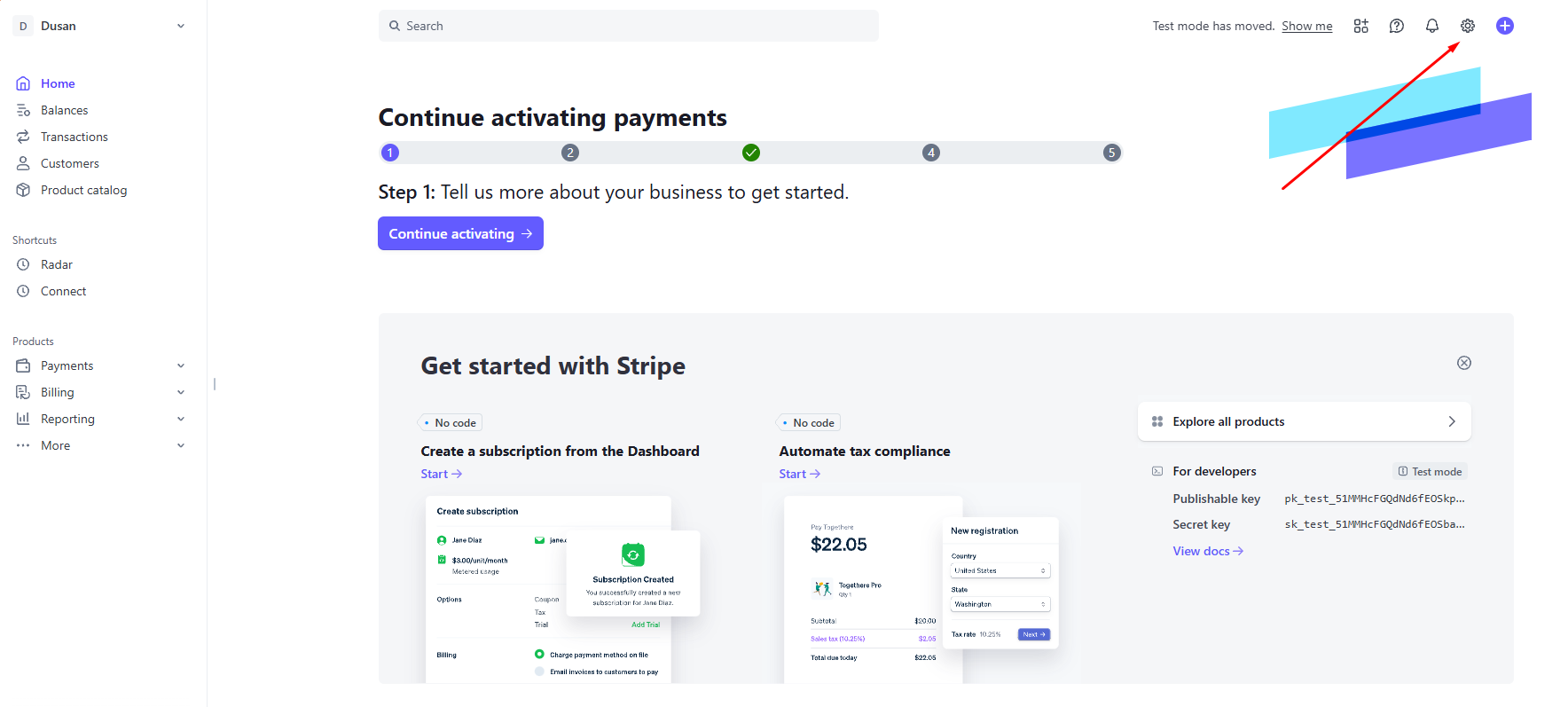
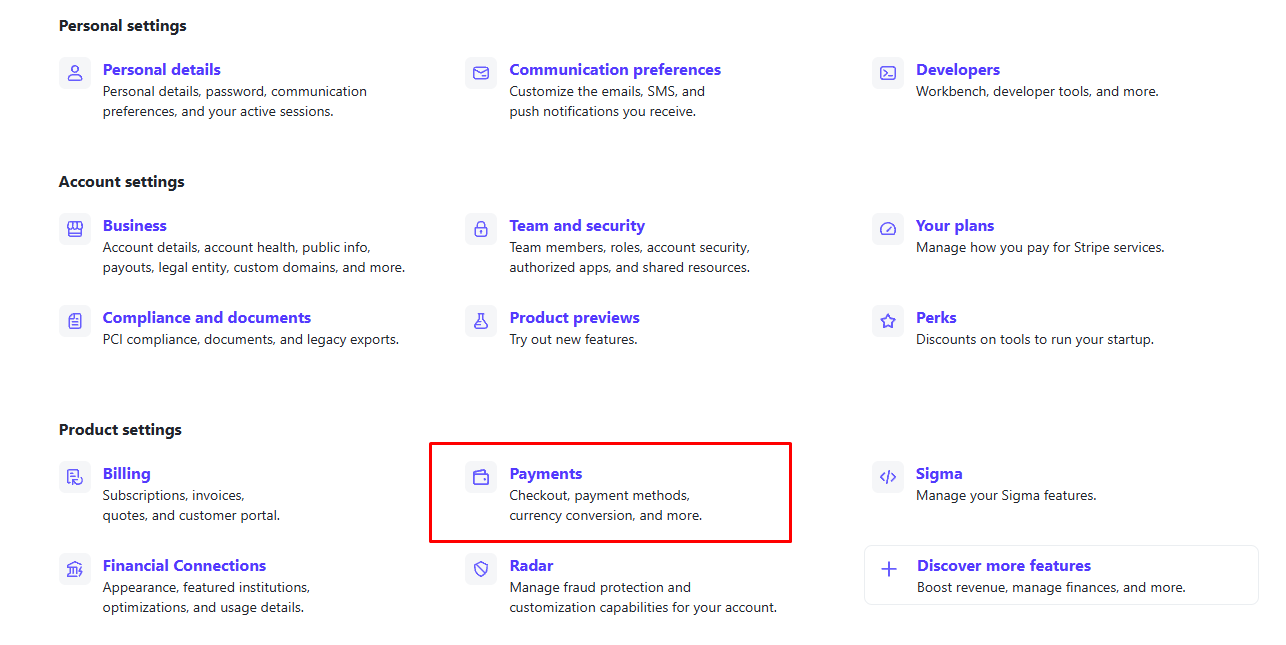
- Navigate to Settings > Payments > Payment Methods.
- Locate SEPA Direct Debit and turn it on.
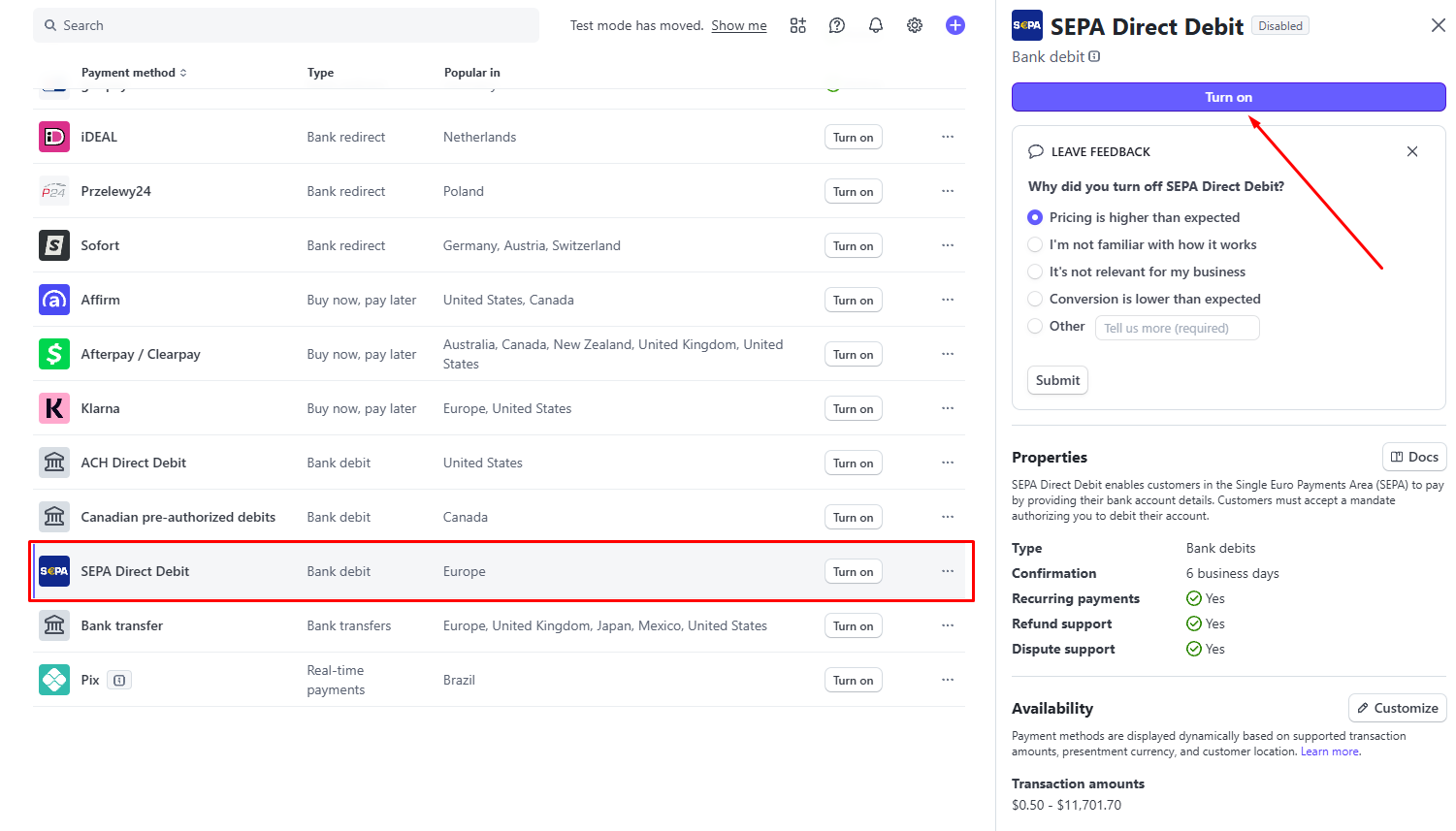
- Also enable iDEAL and turn on recurring payments if your Stripe setup requires it for recurring billing.
How does it work at checkout?
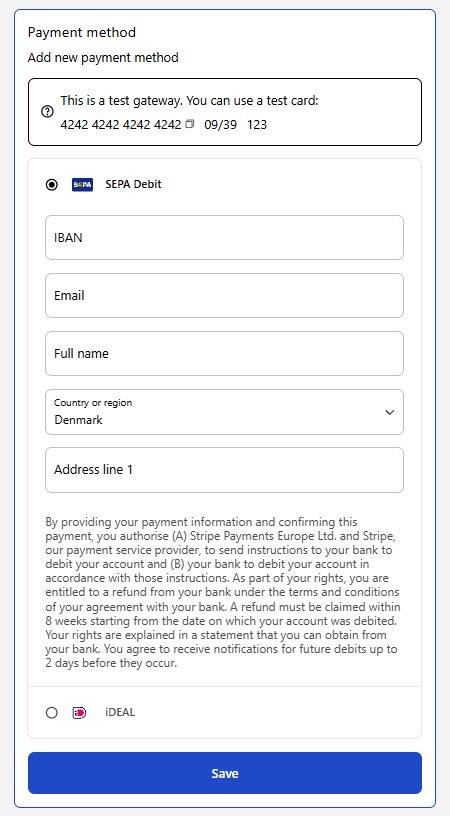
At checkout, your customer provides their name, email address, IBAN, country or region, and billing address. Stripe then starts processing the SEPA Direct Debit.
Invoice status and order timing
After the customer checks out, the invoice appears as Open while the payment is pending. SEPA payments can take several days to settle.
Subbly runs a daily check against Stripe. When Stripe shows the matching invoice as paid, Subbly automatically marks the corresponding invoice as Paid. You do not normally need to mark the invoice manually, although manual marking remains possible.
When this setting is enabled, the order is created immediately for supported asynchronous payment methods. When it is disabled, order creation waits for payment confirmation. The invoice still follows the normal pending and settlement process described above.
Important considerations
- SEPA payments may take longer than card payments because banks need time to confirm them.
- Open invoices cannot be voided or cancelled while they are waiting for SEPA payment confirmation.
- Check the invoice status in Subbly and the payment status in Stripe when reconciling a pending payment.

If an asynchronous payment fails after an order is created, the appropriate follow-up depends on the payment status and your store's process. Confirm the current invoice and order status before taking action.
How did we do?
Updating cart widget based on webpage actions
Changing the Checkout Layout