Writing Your First Prompt (Initial Build)
Learn how to create an excellent initial prompt

This article will guide you through the process of developing an excellent initial prompt and then breaking it down into the component parts that make it effective.
Important considerations
- Be clear about your site structure before starting the build. Have a defined vision of what you want to create, including the key components, number of pages, layout style, and the full checkout flow. Knowing this upfront helps ensure consistency and efficiency throughout the project.
- Use the first prompt to establish the project foundation. Keep it focused on one coherent body of work instead of combining unrelated requests such as a newsletter, popup, header redesign, checkout change, and colour update.
- Start with smaller, focused prompts instead of asking for a full website in one step. Large one-shot builds often produce incomplete or inconsistent results. If the homepage is simple, you can prompt for it as a whole, but it is usually best to begin with a single section such as the hero area and build from there.
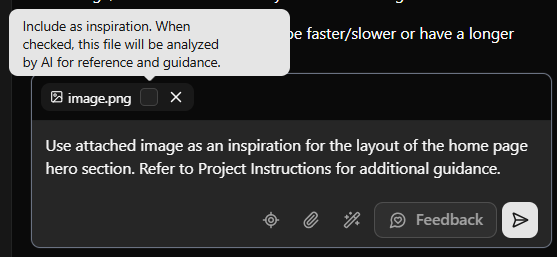
- When words are not enough to explain what you need, use screenshots for visual guidance. Upload an image that represents the layout or look you are aiming for so the Builder can use it as inspiration.
Example prompts
Let's look at a couple of examples of how a first prompt can be structured for different use cases.
Creating a landing page to collect emails
Build a landing page for business called "Your Business Name". Color palette to be used consist of 3 colors: primary #000000, secondary #111111 and tertiary #ABCDEFG (change the hex values accordingly). Use publicly available Google fonts for typography, use cursive fonts for titles (make sure that they are legible) and script fonts for secondary titles or body of the text. This is a landing page for the prelaunch campaign, with launch set to be the 1st of December (change the date accordingly). Collect name and email from the customer, and communicate the Early Bird discount of 20% for the first 3 boxes (coupon to be sent after they signup). Save emails to Subbly Leads via API (gets the emails saved in your Subbly admin under Customers - Leads). Use modern layout that should feel on-brand (refer to the attached logo for the brand guidelines) with subtle loading animations and section transitions.
Use existing layout as inspiration to copy the layout and style
Create a pixel-perfect replica for mybusiness.com. Scrape the page for imagery used and marketing copy and aim to replicate iit as a pixel-perfect replica on the new build. Make sure to implement polishes to fix for padding, spacing and alignment where and if necessary. Make sure that the build is optimized for mobile. Attached are the resources you need to use for logo and section backgrounds (upload imagery for logo and section backgrounds, make sure that the images are properly captioned, eg., hero section, who is it for? etc).
Creating a fully functioning landing page with Subscribe section included
Build a one-page landing site for “Ember,” a single-product monthly subscription: a hand-poured soy candle at $17.40 a month. Add a quarterly option at $49.50 billed every three months, with the saving shown. Include a hero with headline and “Subscribe” button, a three-step how-it-works strip, a plan toggle (Monthly or Quarterly) that updates the price live, three short benefit lines, and a footer.
Styling: warm cream (#F7F1E8) background, charcoal (#2B2B2B) text, a terracotta (#C8643C) accent for buttons. Serif headlines, clean sans body, generous spacing, 12px rounded cards and buttons, soft shadows, subtle fade-in on scroll, mobile-first.
Backend: create the product and both plans in the backend first (Ember Candle, Monthly $17.40, Quarterly $49.50), and have the page read its products and prices from there rather than hardcoding them.
How did we do?
Best Practices and Prompt Optimization Tactics
Project Checklist (Set Up Your Project on the AI Web Builder)