Troubleshooting Common Issues
A list of common problems and troubleshooting steps.

This article offers general guidelines for troubleshooting and resolving issues with the AI Website Builder. If these steps do not help, contact the support team through live chat or the dedicated Slack workspace, if you have access to it.
Preview problems
Error
The preview panel is blank or stays on Connecting to skynet for too long.
Troubleshooting
- Refresh the preview.
- If the preview is still stale or blank, contact support. Do not ask the agent to fix the preview.
502 Bad Gateway
Error
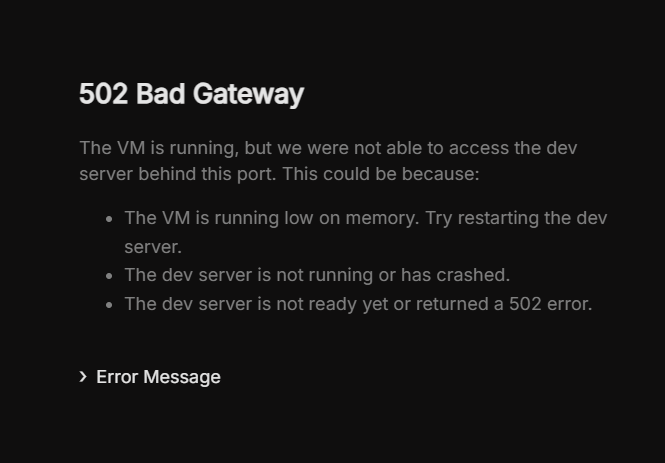
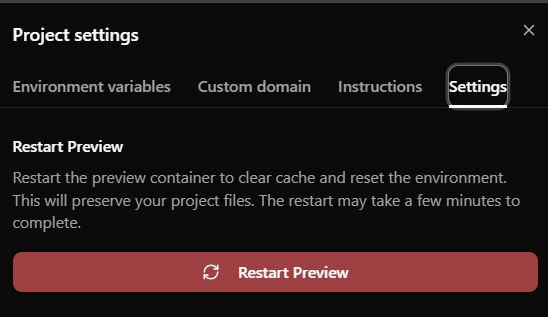
Troubleshooting
Try the following in order:
- Refresh the browser page.
- Click on the Try Again button present on an error page and wait until the preview server loads again.
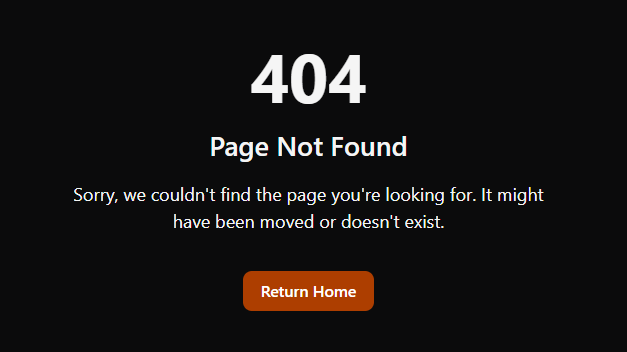
404 Page Not Found
Error
Troubleshooting
The page you are trying to preview or change may have been deleted or may have had its slug changed. Try one of the following:
- Click Return Home to restart the preview and show the last version of the page you were working on.
- Choose the root page or another existing page from the dropdown to open an active page preview.
- Review the page slug changes and restore the correct slug if needed.
Element Selector not working
Error
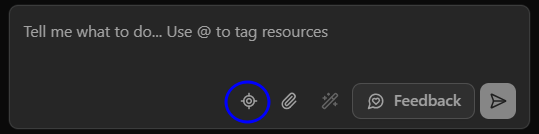
Element Selector is disabled and cannot be clicked or used.
Troubleshooting
Some Builder resources may be missing or the selected element may not be supported. Try selecting a supported element again. If the tool remains unavailable, contact support.
Older or Read-Only chat
Only the most recent chat accepts new prompts. Earlier chats are marked Read-Only, so their prompt box cannot be used to continue them.
To continue from an older version, open Version History in that chat, select the version you want, open its three-dot menu, and choose New Chat. This creates a new chat from that version while keeping the original chat and its history available. If the Builder shows an older site version and you cannot identify the branch that created it, contact support.
Restore and New Chat change Builder state only. Neither action publishes the site. Use the current Publish action separately when you are ready to make the build live.
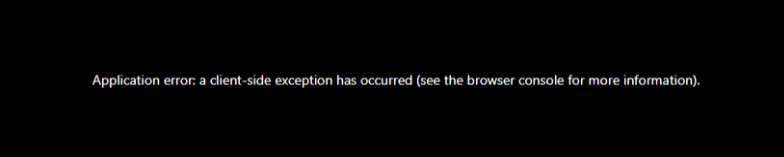
Application error: Client-side exception
Error
This error can appear when Element Selector targets an unsupported element.
Troubleshooting
Select the wrapper around the unsupported element and ask the agent to replace the file with one in a supported format.
How did we do?
Project Checklist (Set Up Your Project on the AI Web Builder)
Optimizing for Performance and Credit Usage