Account Element
Adding the Cart and Sign In widgets to your site's pages
Getting started
If you built your site on Subbly, one thing that you also might consider is adding a Login widget along with the Cart widget to your site's header, so your customers can easily view the cart count as they are browsing your site, or they can quickly login to their customer login area where they will be able to manage their subscription.
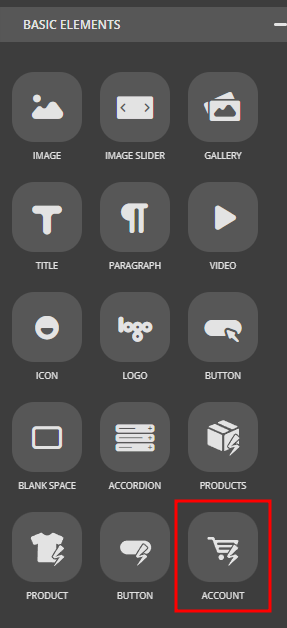
All that you need to do is to drag and drop the Account element (which you can find in the Elements section on the left sidebar of your admin) to where you want the widget to appear on your site.
And you're all set!
Customizing the element
Now that you have your Account element on your website, you would like to know how you can change the size or the color.
The first thing you would need to do is to right-click your element. You will be prompted with five options, but let's focus on the first one - Account Settings.
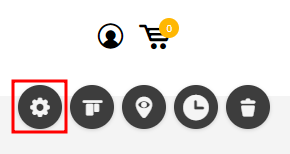
After clicking it, the magic will happen.
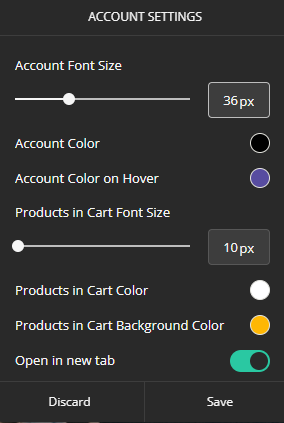
- Account Font Size - this allows you to change the size of the element.
- Account Color - this allows you to change the base color of the element.
- Account Color on Hover - this allows you to change the color of the element when the mouse cursor is over the element.
- Products in Cart Font Size - this allows you to change the size of the number that appears above the cart element. (Referring to the image above, that would be the 0)
- Products in Cart Color - this allows you to change the color of the number inside the circle. (Referring to the image above, that would be the color of the 0 inside the yellow circle).
- Products in Cart Background Color - this allows you to change the background color of the number of products in the Account element. (Referring to the image above, that would be the yellow circle)
- Open in a new tab - this allows you to open the cart element on a new page instead of opening the page on the same page the user is on.
- No Follow - this allows you to make your element not influence the search engine rankings of the destination URL - which means the cart.
Now is your turn to brand your Account element.
How did we do?