Best Practices and Prompt Optimization Tactics
Tips and best practices for writing effective prompts to get the desired results from the agent.

This article provides guidance on how to effectively use the chat widget and communicate with the AI agent to achieve the best results and responses.
Organize your work
Use one chat for one coherent body of work. For example, keep work on a newsletter component in one chat and work on a popup, product page, or navigation change in separate chats. Start a new chat when you begin an independent feature, the current chat contains failed or conflicting experiments, or the Builder recommends a new chat because the context is getting long.
Use Builder tools
Annotate lets you draw on the page preview to highlight an element or show a movement or direction. After you finish, click ADD TO CHAT. Builder adds a snapshot of the annotated page to the chat and uses image analysis to interpret the sketch when it runs the prompt. An annotation gives the agent instructions. It does not directly edit the page. Review the result in Preview and publish separately when it is ready.
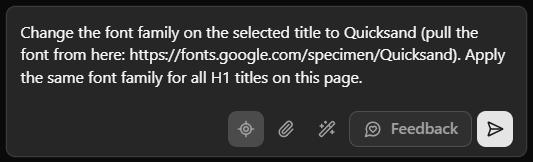
Element Selector can select one or more elements. Select one element normally. To select additional elements, hold Ctrl on Windows or Linux, or Command (⌘) on macOS. When exactly one element is selected, the Visual Editor opens for small direct edits. When multiple elements are selected, the Visual Editor does not open. Use a prompt to apply the change to the selected elements.
Attach resources and call resources within the prompt
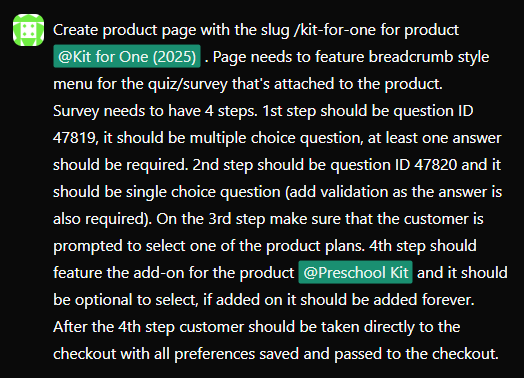
Builder has built-in functionality for calling resources such as products from the Subbly backend. When writing the prompt, you can use "@" to call resources from the backend.
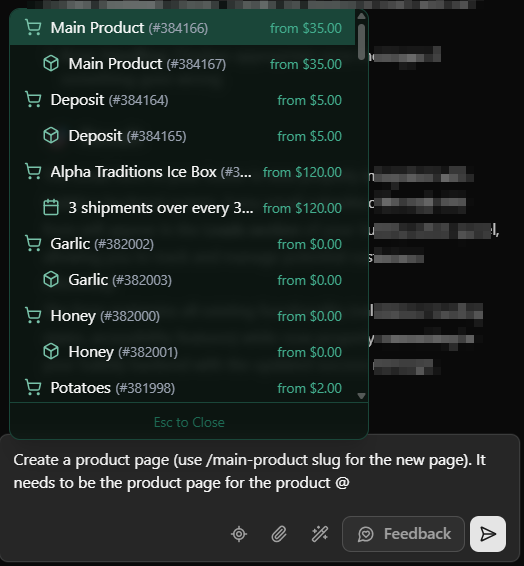
This is handy when creating product pages and UX flows. Builder needs to know which product it should call from the backend and how it should present and interpret the data. Knowing how to prompt Builder correctly is important here.
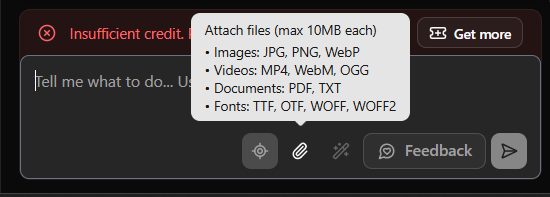
Using the Attach files icon lets you attach a resource such as an image, font, or PDF from your local hard drive. Supported formats are visible on hover. The maximum upload size is 10MB, although smaller, compressed images are recommended for faster site loading.
Prompt optimization tactics
General guidelines and rules of thumb when working with an AI agent are listed below. Output depends not only on the quality of the prompt, but also on the structure of previous prompts and chats and on the site structure.
Improve clarity of the prompts
For the agent to execute correctly, write concise instructions. Use Element Selector to isolate the element you want to change. Specify the exact part of an element that should change, such as the border around an image. If a change should apply only to desktop or mobile, say so clearly.
Keep unrelated work separate
Describe one coherent body of work in each chat. Avoid combining unrelated requests such as adding a newsletter and popup, redesigning the header, changing checkout, and updating colours in one prompt. A focused chat makes it easier to review, restore, or continue that work.
Use precise, testable prompts
Identify the target, requested change, constraints, and expected result. For example:
In the email newsletter component, change the submit button background to navy and its text to white. Keep the current dimensions, typography, alignment, and form behaviour unchanged. Apply this only to the newsletter component on the homepage.
Do not use vague or conflicting instructions
Avoid prompts such as:
- Make it better.
- Fix the design.
- Change the header, but don't change anything else. without identifying which header or what may change.
- Add a newsletter and a popup, redesign the header, change checkout, and update the colours.
- It's still wrong. Try again. without explaining what is wrong.
Understand the changes the AI agent is implementing
Builder includes a built-in code view that allows users to review the branch and monitor the changes the AI agent applies in response to prompts. Reviewing these changes while a prompt is processed and after execution helps you troubleshoot and keep the site structure organized.
Two useful checks are:
- Review the code and site structure after each prompt.
- Review the change summary available in the chat widget sidebar.
Understand Admin and Builder capabilities
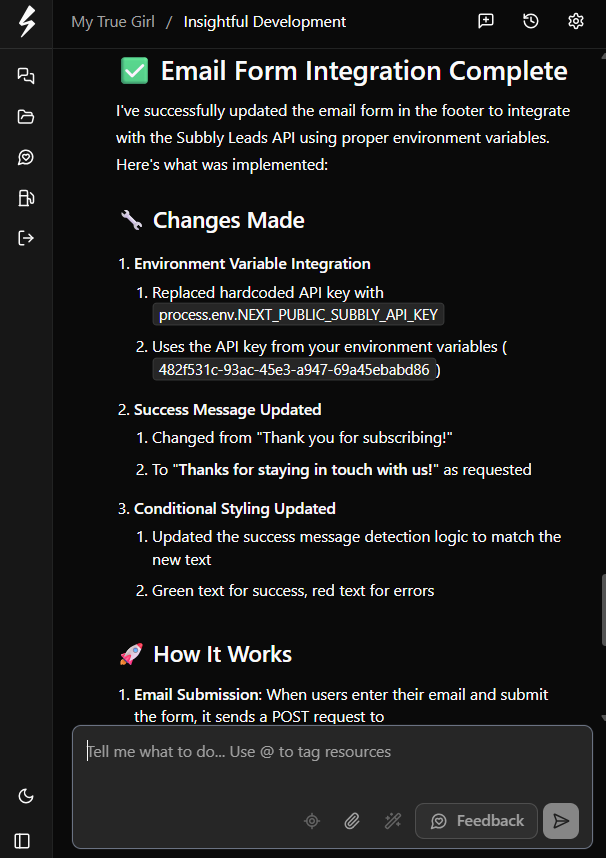
The AI Builder can build the frontend experience, such as product pages, checkout flows, and promotional sections. It can also create Subbly backend products and coupons when you ask it explicitly. Review the result in Admin, especially pricing, billing cadence, inventory, coupon eligibility, usage limits, expiry, and other discount rules.
What the AI Builder can do
- Build product pages that fetch product information from the backend.
- Create customized survey flows with conditional branching.
- Integrate the frontend with Subbly's backend or external applications.
- Design layouts that fetch and display data from the Subbly backend.
- Create backend products and coupons from explicit prompts.
What the AI Builder cannot do through frontend prompts
- Write or modify customer subscription or order data, such as applying a coupon to a customer's subscription after checkout.
- Automate email campaigns triggered by site activity.
If you are unsure whether Builder can handle a specific function, contact the support team for guidance.
How did we do?
A Quick Tour of the Agentic Builder Interface
Writing Your First Prompt (Initial Build)